

Your first random video chat
This guide follows one chat on Ominglo from the first click to the last: what you see after pressing Start, what each button does and how to leave a chat you do not like.
Published by the Ominglo team.
Before you start
You need a camera, a microphone and a current browser on a computer or a phone. There is no app to install and no account to create: you can chat as a guest. Ominglo is for adults only, so you must be 18 or older. If you are not sure your camera works, run the camera and microphone test first. It takes less than a minute.
1. The start screen
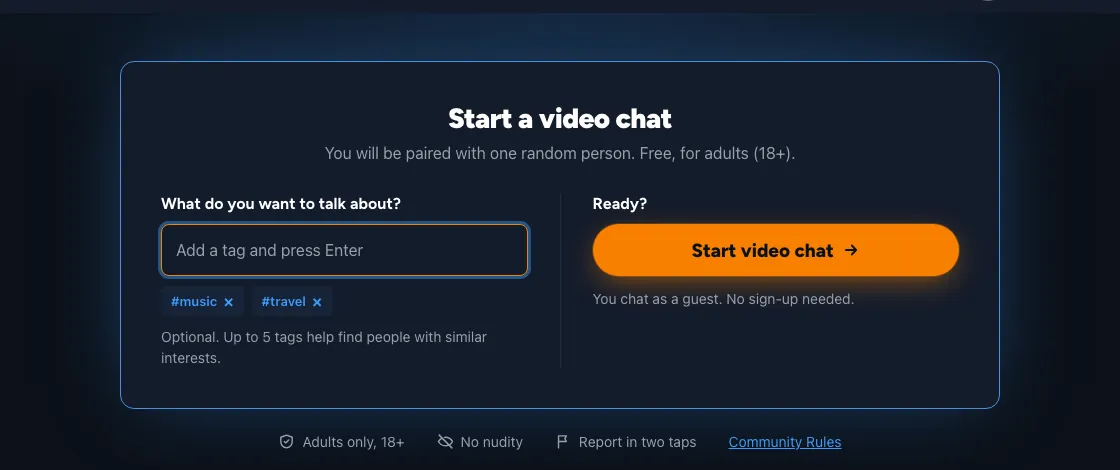
Open Video chat. The start screen asks one question: what do you want to talk about? Interest tags are optional. Type a word, such as a hobby or a film, and press Enter. On the free plan you can add up to 5 tags. When you are ready, press Start video chat.
2. Confirm that you are 18 or older
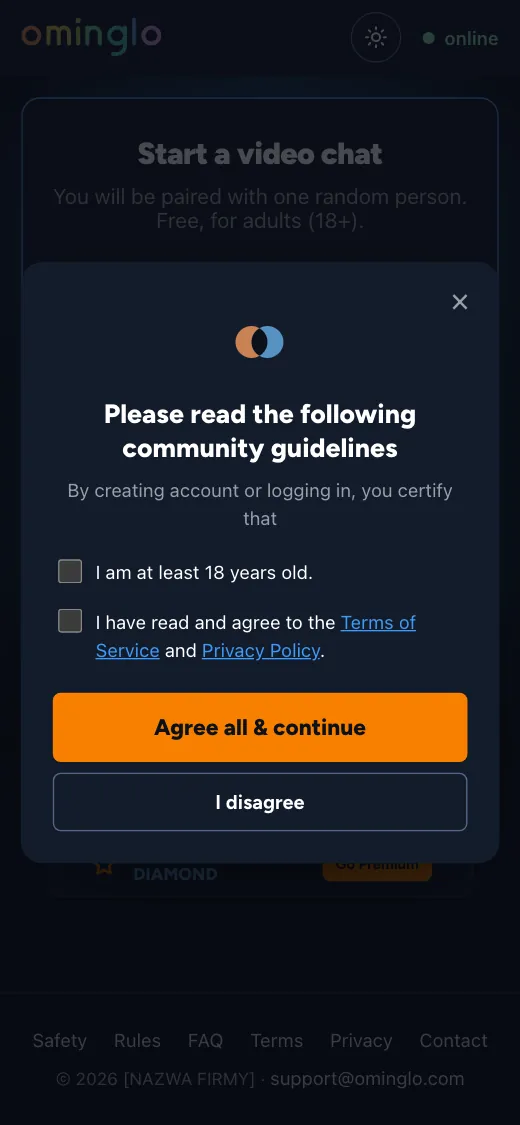
The first time you press Start, a window asks for two confirmations: that you are 18 or over, and that you accept the Terms of Service and the Privacy Policy after reading them. Tick both boxes, or press Agree all & continue. If you choose I disagree, no chat starts.
3. Allow the camera and microphone
Next your browser asks whether this site may use your camera and microphone. This window belongs to the browser, so it looks different in Chrome, Safari and Firefox. Choose Allow. If you pressed Block by mistake, the camera test page explains how to undo it in each browser.
4. Looking for someone
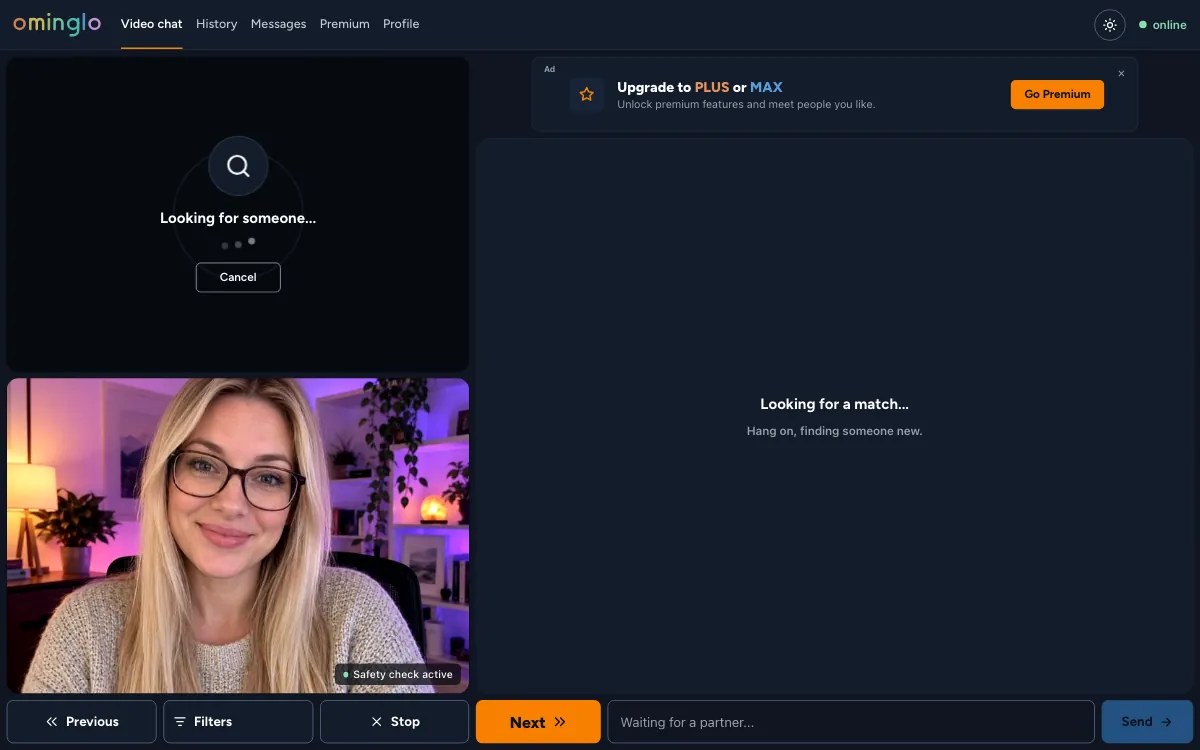
Now Ominglo looks for one random person for you. The top window says Looking for someone, your own camera is shown below it, and the text box on the right waits for a partner. You can press Cancel at any time.
5. The chat
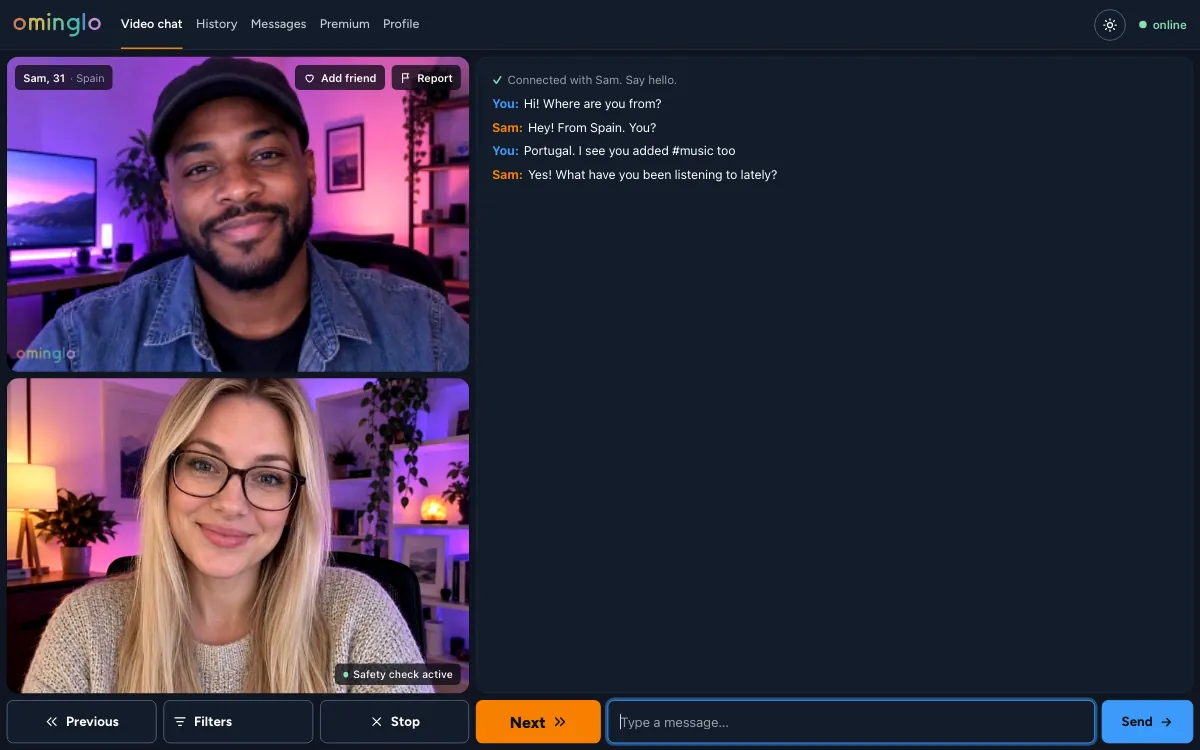
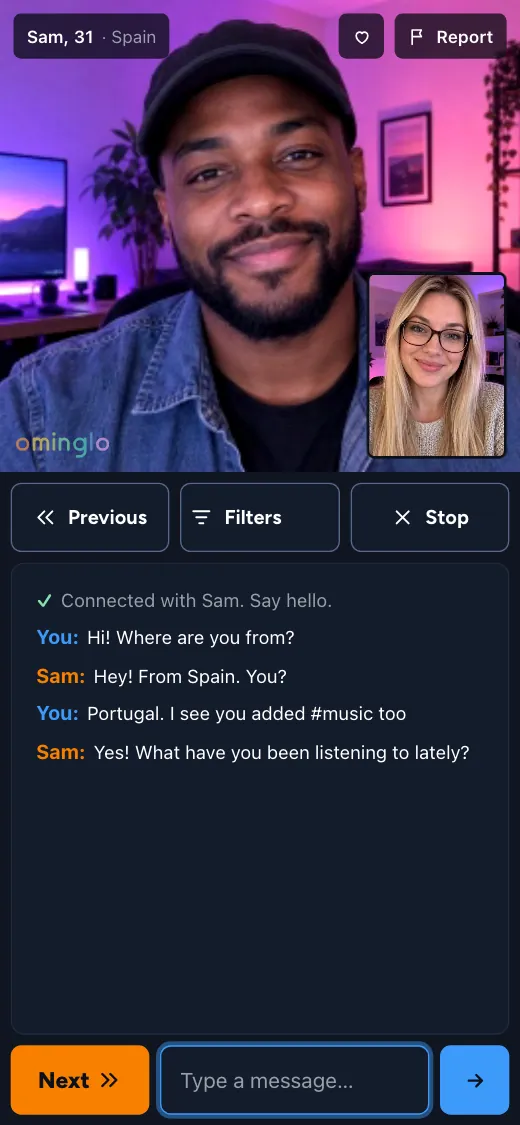
When someone joins, their video appears at the top with their name, age and country. Your video is underneath. On the right, a short line tells you who you are connected with, and another one appears when you both added the same tag. Type in the box at the bottom and press Send.
The small label Safety check active on your own picture means the automated checks are running. If they spot nudity on the other person's camera, you see their picture blurred right away. The chat carries on, and the blur lifts once the picture is clean again.
On a phone the layout changes. The other person fills the top of the screen, your picture sits in the corner, and the buttons and messages are below.
6. Next, Previous and Stop
- Next ends this chat and looks for someone new. You never have to explain why.
- Previous takes you back to the person you talked to before. It is part of the paid Plus and Max plans.
- Stop ends the chat and takes you back to the start screen. Nobody new joins until you press Start again.
- Add friend sends a friend request. A friends list needs a Google sign-in.
7. Reporting someone
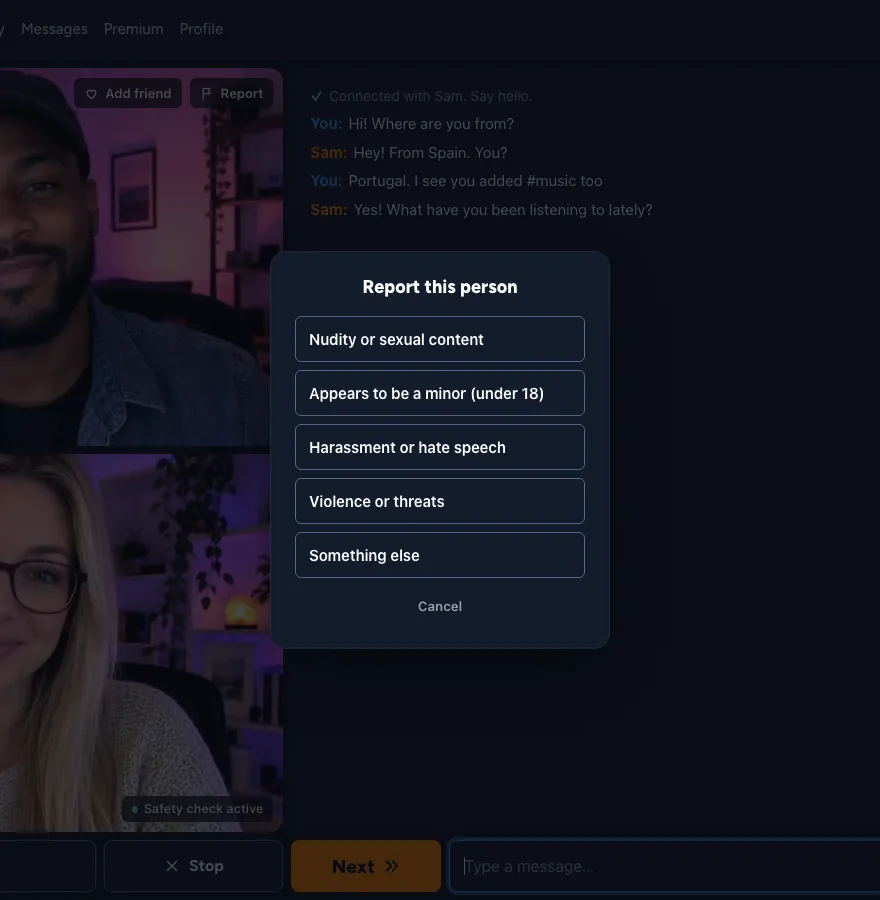
If someone breaks the rules, press Report next to their name and pick a reason. The chat ends at once. The report goes to the moderation team with one frame of the reported person's video and the last text messages from that chat. A report on its own does not suspend anyone: a person on the team looks at it first.
8. Filters
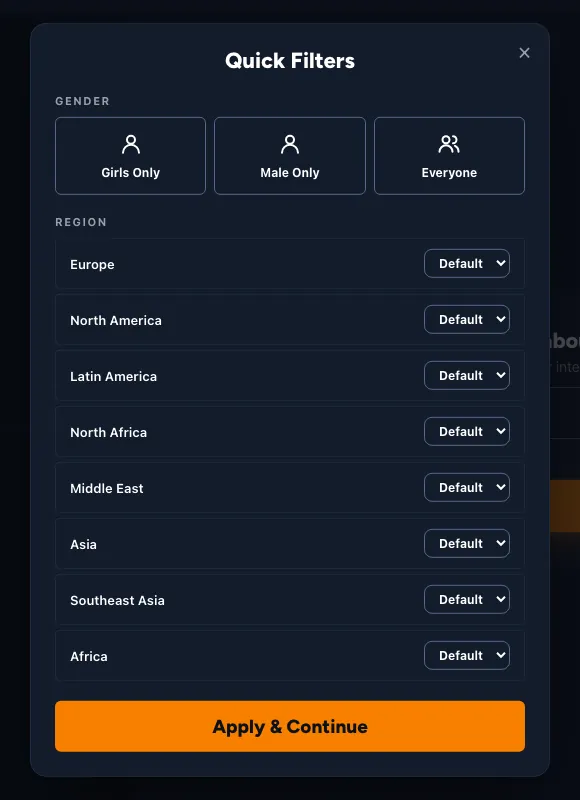
The Filters button lets you choose whom you meet by gender and by region. Filters are part of the paid Plus and Max plans. On the free plan the button shows the plans instead, and you keep chatting with anyone.
9. When nobody connects
- Give it a moment. The search keeps going on its own. Tags give priority to people with the same tag only for a short time; after that you can be paired with anyone.
- Loosen your filters. On a paid plan, set gender to Everyone and the regions to Default. Narrow filters leave fewer people to choose from.
- Check your camera and network. Run the camera test. If it says a relay is needed and chats never start, try another network, such as mobile data.
- Reload the page. If the window still says Looking for someone after a long wait, press Stop, reload the page and press Start again.
What next
That is the whole flow: Start, confirm your age, allow the camera, chat, and press Next or Stop whenever you like. Read Safety to learn what is checked during a chat and what happens to images from your camera, or go straight to a video chat.